GRL Laser Tag Rotterdam - how to and source code
February 20, 2007
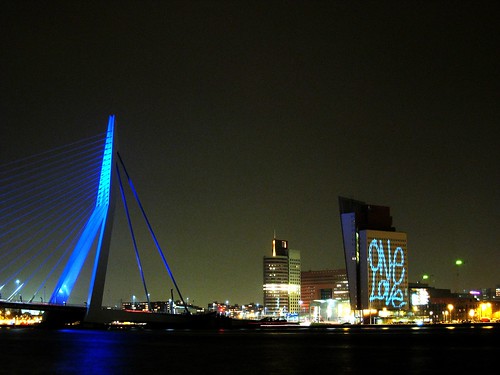
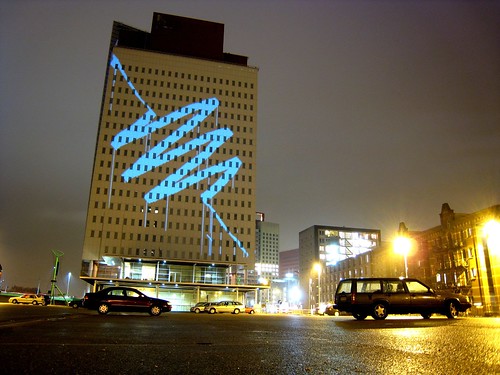
The main event of the GRL Rotterdam tour - 'L.A.S.E.R TAG' - 60mw geek graffiti madness.
Watch the
video here on the
Graffiti Research Lab website.
In the spirt of GRL's and
Eyebeam's open source beliefs, we are posting the code and executable
for the Laser Tag application online for you to download, dissect, reuse and hopefully improve. The code is
C++ and compiled in a super old school Codewarrior IDE for windows but it is oepnGL based and written
using
openFrameworks which is a cross platform library for writing creative code. So it should be very
straight forward to run in Visual Studio, DevC++ or even xcode on a mac.
There are a bunch of things you need to do to get Laser Tag up and running so here follows the required equipment
and setup instructions. This will assume that you using windows but it will also apply for other OSs too.
EQUIPMENT
We used:
1 PC Laptop - ASUS A8JS - Core 2 Duo 1.83 Ghz 1GB Ram Nvideo Geforce Go 7300 256MB - VGA and DVI out.
1 Pansonic PTD5600U 5000 ANSI Lumens 1024x768 DLP Projector.
1 Watec 221S Security/Astrononmy Camera with manual iris zoom lens.
1 Bogen magic arm and super clamp.
1 Pinnacle PCTV USB capture card.
1 60mW Green Laser (super illegal in a lot of places and very dangerous)
and loads and loads of AAA batteries.
SETUP
Location:
Choose a building or wall that the laser shows up well on. If using a building make sure the lights aren't on
as this will make the tracking of the laser beam harder (also it is not a good idea to point powerful lasers
at a building with people in it) .
Pick a spot far enough back that the projector can overshoot the building by a couple of feet on all sides.
Alignment and calibration:
If the building is vertically orientated and the projector can handle it, put the projector on its side so you are
using the full image of the projection.
Fix the projector in place and then fix the camera underneath the lens of the projector so that it is looking at the
projection area. Allow the camera to see a little more than the projection area so that you can designate an area
as a clear button.
Make sure all the settings on the camera are set to manual - no auto exposure or gain control etc. Adjust the color
balance of the camera so that it looks as natural as possible - make sure any lights in the shot don't look green as this
will confuse the tracking sytem.
Software setup:
Set your resolution of your screen to 1024 by 768.
Connect the projector to the PC and in your display control panel set the display mode to horizontal span.
This should span the Desktop across the laptop screen and the projector so that you have one large screen
of 2048 by 768 resolution. If you have access to openGL and 3D preferences in the control panel, set all settings
to performance.
Connect the camera to the usb capture card and the capture card to the PC. You can use
Amcap
to make sure you can capture video okay.
Start the app and you should see something like the image bellow.
Follow the instructions in the diagram to align the camera to the projection surface.